The Notch
Last updated: November 13, 2026
The Notch is the small bar at the top of your screen. Highlight uses it to show you meeting, reminder and chat updates, and you can use it to ask Highlight a question or control a recording without opening the side panel or desktop app.
It's on by default in the Highlight desktop app on Mac and Windows. If you used the floating Highlight logo before, the Notch replaces it.
What you can do from the Notch
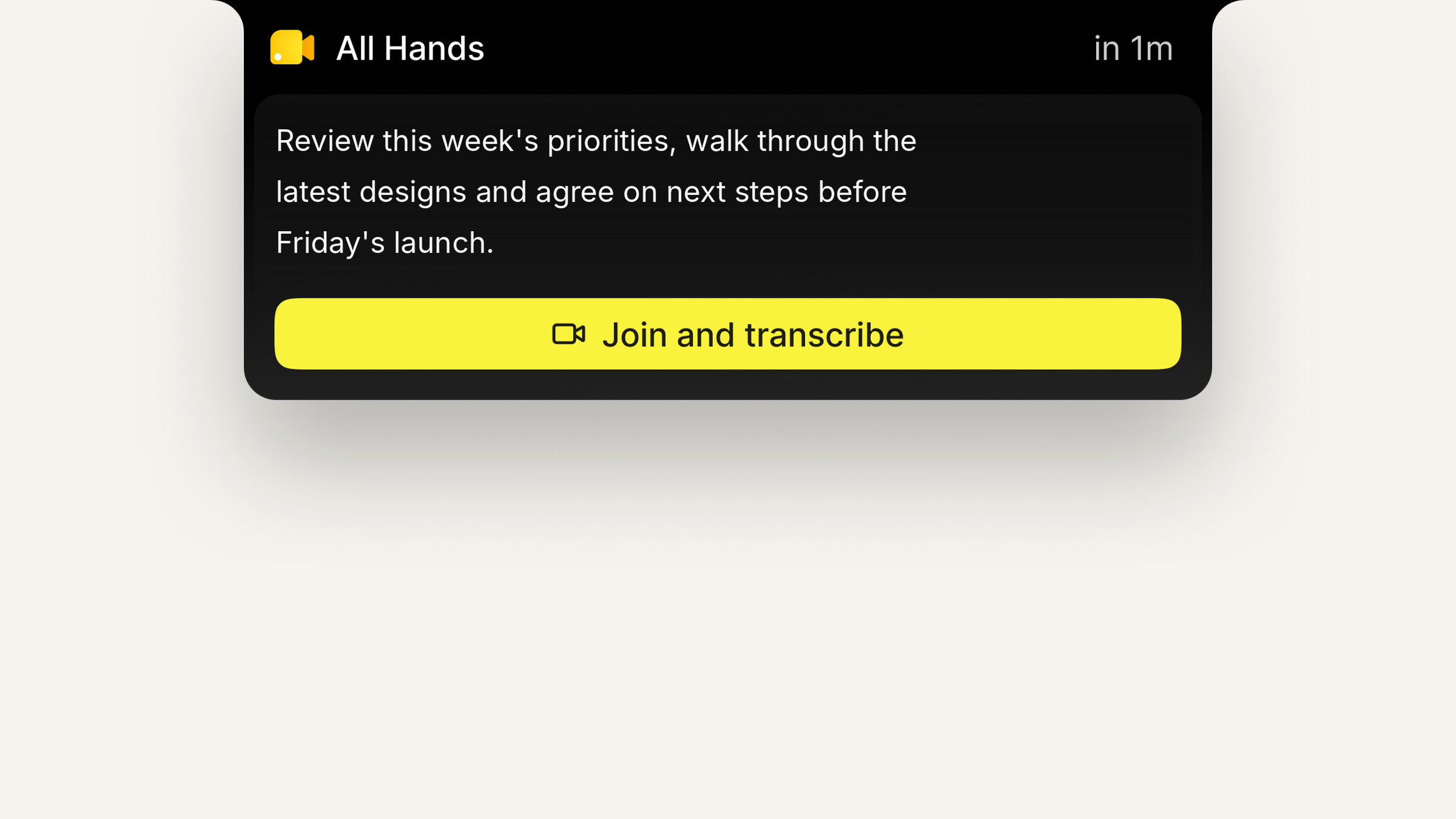
See updates. Meeting reminders and chat updates drop down from the top of your screen. Click one to open it or dismiss it. If you leave it alone, it closes on its own.
Join a meeting. When a meeting is about to start, the reminder that drops down includes a Join button.
Ask Highlight. Hover over the Notch, click Ask Highlight and type your question. The chat starts from whatever app you're in, so you don't have to switch windows.

Start a meeting note. Hover over the Notch and start a new meeting note. Highlight starts recording without opening the app.
Pause or stop a recording. While Highlight is recording, the Notch shows a waveform. Hover over it to see how long you've been recording, then pause, resume or stop.

Incognito Mode. Turn on Incognito Mode to pause screen and audio capture for 1 hour or until tomorrow morning. When enabled, Highlight won't record or process any content.
Access Settings Easily access your full settings menu.
Where the Notch sits
Mac: The Notch sits at the top center of your screen and can't be moved.
Windows: Windows doesn't have a physical notch, so you have a choice. Leave it docked at the top of your screen, or drag it down off the top bar to turn it into a small floating pill you can place wherever it's out of the way.
Turn the Notch on or off
The Notch is on by default. To hide it, open Highlight's Settings and go to Interface. Turn on/off Show Highlight in the notch
Turn the same setting back on to bring it back. With the Notch hidden, you can still open Highlight with your hotkey or the Highlight icon in your menu bar (Mac) or system tray (Windows).
Frequently asked questions
What's the black bar at the top of my screen?
That's the Notch. When nothing is happening it doesn't show the Highlight logo, so it's easy to miss or mistake for something else. The logo appears when Highlight has an update for you. Hover over it to see what you can do.
Where did the floating Highlight logo go?
The Notch replaced it. It uses the same setting, so if you had the floating logo hidden before, look under Settings > Interface to check how the Notch is set.
The Notch is covering icons in my Mac menu bar.
On smaller Mac screens, the Notch can overlap menu bar icons when it expands. It can't be moved on Mac. If it's getting in the way, turn it off under Settings > Interface > Show Highlight in the notch.
Can I move the Notch?
On Windows, yes. Drag it off the top bar to turn it into a floating pill. On Mac, no. It stays at the top center of your screen.
I have feedback on the Notch.
We'd like to hear it. Please provide product feedback or reach out to support in the app, which you can access via Settings --> ❓ icon and chat with support.