How to download and install Highlight
Last updated: September 4, 2026
Highlight is a desktop app that lives on your computer not in your browser. This article walks you through downloading it, running the installer, and getting the app open for the first time.
Where to download Highlight
You can always download the latest version of Highlight at highlightai.com.
Install on Mac or Windows
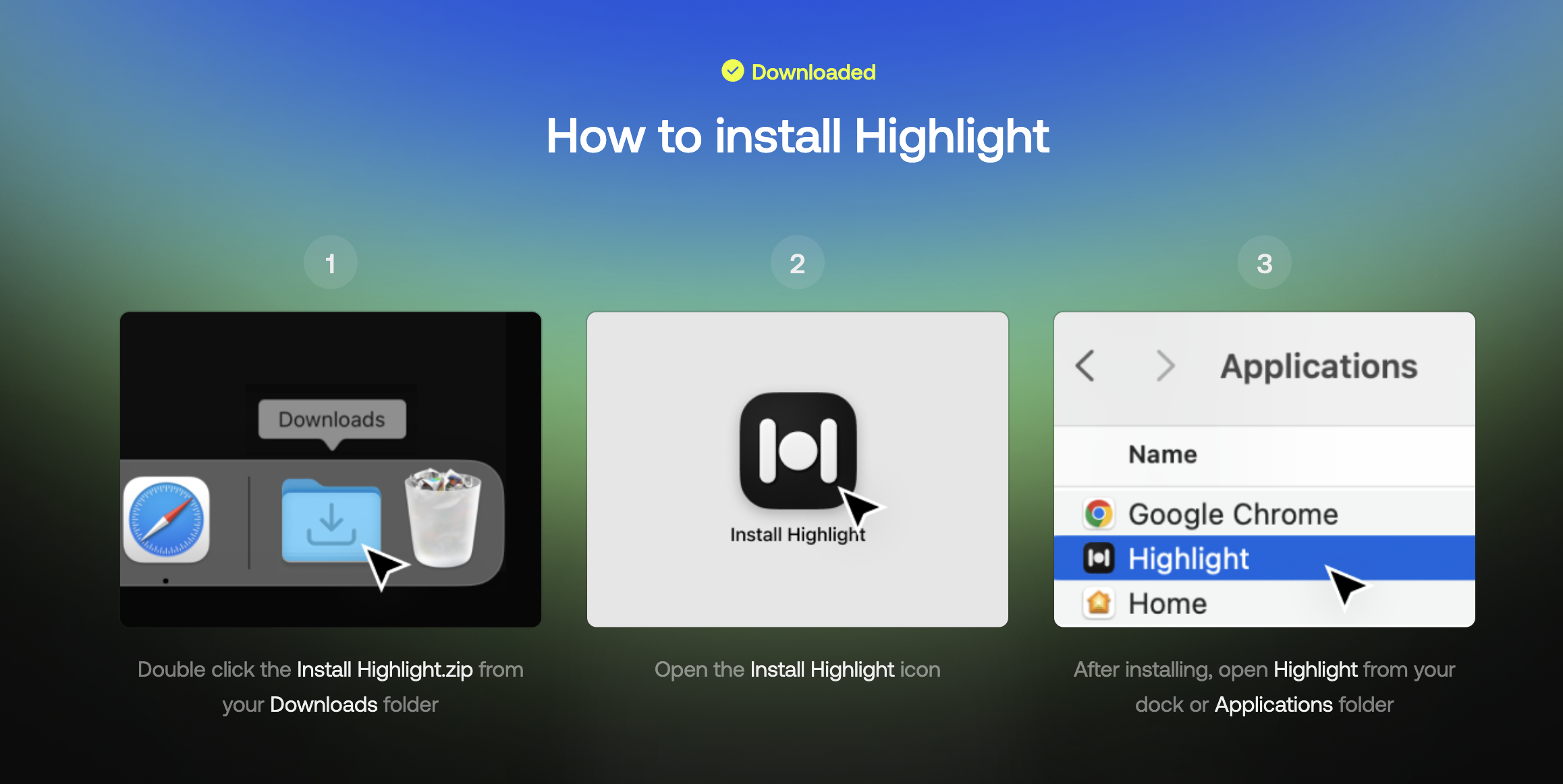
1. Open the downloaded file — Double-click the .dmg file in your Downloads folder.
2. Drag Highlight into your Applications folder — A window will appear with the Highlight icon and a shortcut to your Applications folder. Drag the icon across.
3. Open Highlight — Go to your Applications folder (or use Spotlight: ⌘ + Space, type "Highlight") and double-click the app.
4. Allow the app if macOS asks — If you see a prompt saying the app was downloaded from the internet, click Open. This is a one-time macOS security check.
What happens after you open Highlight
The first time Highlight opens, it walks you through a short setup: granting system permissions, connecting your calendar, adding any integrations you want, and a quick tutorial. This takes about 5 minutes.
Once setup is complete, you're ready to go. Highlight will appear in your menu bar (Mac) or system tray (Windows) and the side panel is ready when you need it.
Having trouble?
If Highlight won't open or the installer fails, try these steps:
Make sure you're running a supported version of macOS or Windows.
Check that you have at least 500 MB of free storage.
On Mac: right-click the app and choose Open instead of double-clicking, if macOS is blocking it.
On Windows: right-click the installer and choose Run as administrator.
Still stuck? Reach out to the Highlight team at support@highlightai.com and we will get back to you.