Create your account and sign in
Last updated: September 4, 2026
When you open Highlight for the first time, you'll land on the sign-in screen. This article walks you through creating a new account.
Ways to sign in
Highlight supports multiple sign-in methods. Each work equally well, so pick whichever fits how your team authenticates. Keep in mind that Google Authentication or Passkeys are the most secure login methods, and we always recommend using Multi-Factor Authentication (MFA).
Login Method | Why choose this method |
Sign in with Google Best if your team uses Google Workspace (Gmail, Google Calendar). One click — no password to remember. | Easiest, no passwords to remember, strong security |
Passkeys Connected to your work email, and created via your password manager | Created by your existing password manager. Nothing new to remember, very strong security. |
Email Code Best if you use Outlook or any other email provider. Create a Highlight account with your work email and receive a one-time use code via email. | Very simple to use. Relies on the security of your email provider. We always recommend using MFA in addition to this method. |
Email & Password Best if you use Outlook or any other email provider. Create a Highlight account with your work email and login with a password. | Least secure method that should always be paired with MFA. It's the least secure method because users can re-use previously compromised passwords. |
Option 1: Sign in with Google
1. Open Highlight — The sign-in screen will appear automatically when the app launches.
2. Click "Sign in with Google"
3. Choose your Google account — A browser window will open. Select the Google account you want to use with Highlight — ideally your work account.
4. Grant Highlight permission — Google will ask you to confirm that Highlight can access your account information. Click Allow to continue.
5. You're in — Highlight will close the browser window and bring you back to the app. Your account is ready.
Use your work Google account
Highlight works best with the same Google account that's connected to your work calendar. This lets it pull upcoming meetings and prepare briefs automatically.
Option 2: Choose Email Login for Passkeys or Password
When using your email address to login, you have multiple choices. All being with: Creating a new account
Click "Sign in with email" — You'll see fields for your email address. Enter your work email address. You'll have two methods to login:
1) Passkey or Email code - these two options provide the most secure methods for login because they prevent password reuse and provide a secondary factor of authentication.
Passkey: They’re stored in your password manager, so once you make the selection, it will automatically store and authenticate you through your password manager.
Benefits of Passkeys: With passkeys, you don't need to remember complex passwords. They are are encrypted digital keys you create using your fingerprint, face, or screen lock. Passkeys are saved in your password manager, so you can sign in on other devices. They are Safer by design. Passkeys can't be guessed, leaked, or even phished.
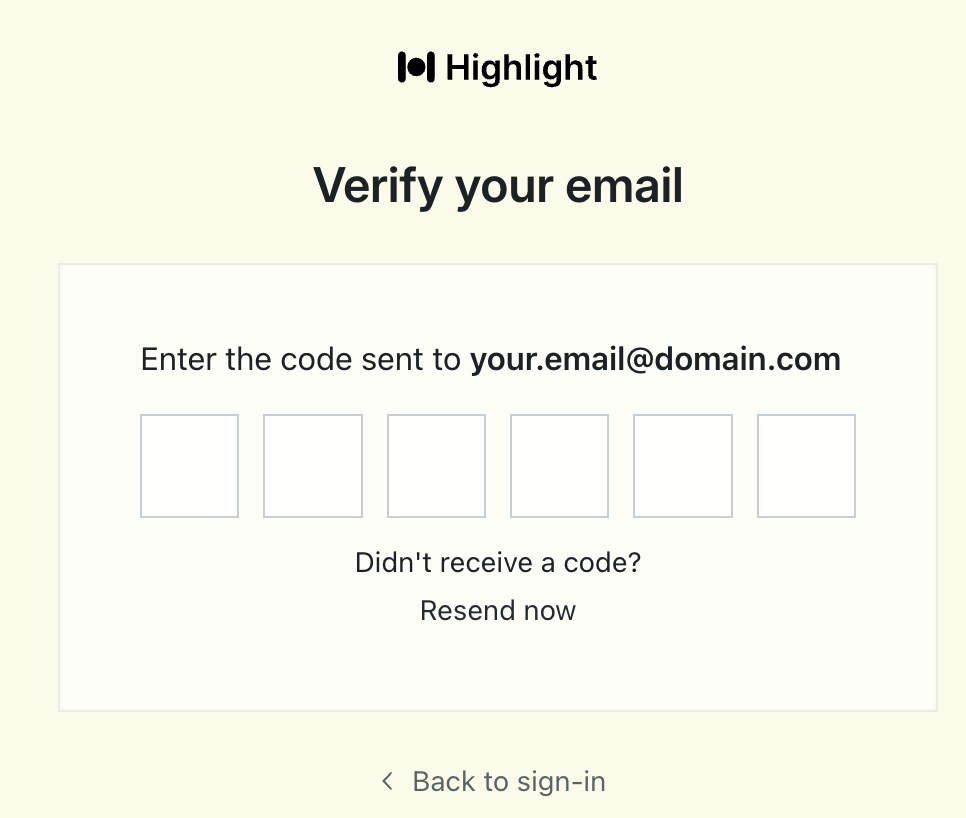
Email code: A one-time passcode (OTP) will be emailed to the email address you provided. This will verify your ownership of the email account.
2) Password - Enter your work email and choose a password. Use your work email address. Your password must be at least 10 characters.
Check your email for a verification link — Highlight will send a short verification email. Click the link inside it to confirm your address.
Return to Highlight — Once you've verified your email, Highlight will automatically log you in and start the setup flow.
Password best practices:
10 characters or more - more is better
Use randomized UPPERCASE, lowercase, and symbols
Do not reuse passwords
Store passwords in a password manager
Phone Number Verification
In order to use Highlight, you must have a valid phone number.
Enter your phone number to receive a One-Time Password (OTP) via SMS
Enter the OTP that you received to verify your account

Enabling Multi-Factor Authentication
Enabling Multi-Factor Authentication (MFA) is a an excellent method to safeguard your account. To do so, follow these steps:
Visit your Account Page: https://highlightai.com/account
Under Security, choose "Set up Authenticator App" - you'll receive a OTP to your email address for added security
Enter the 6 digit OTP from your email address
To setup MFA
Use an authenticator app like 1Password, Google Authenticator, Authy, or Microsoft Authenticator to scan the QR code below.
Select "View Setup Key" if you're unable to scan the code, and enter it into your Authenticator App
Enter the MFA token from your app into Highlight to finish setup
Troubleshooting sign-in
I'm not receiving the verification email.
Check your spam or junk folder. If it's not there, click Resend verification email on the sign-in screen. Make sure you're checking the inbox for the email address you registered with.
I forgot my password.
Click Forgot password? on the sign-in screen. Highlight will send a reset link to your registered email. The link expires after 24 hours.
My Google sign-in isn't working.
Make sure you're selecting your work Google account, not a personal one. If the issue persists, try signing out of all Google accounts in your browser, then try again. You can also contact support at support@highlight.ing.