Highlight for Slack
Last updated: October 27, 2026
Highlight is an AI-powered productivity tool that captures context from your meetings, conversations, and connected apps, so you never lose track of what matters. The Highlight app for Slack brings that context into Slack. You can ask questions, draft messages, and get notified about meetings and tasks without switching tools.
Highlight for Slack requires a Highlight account. Visit highlightai.com to learn more and sign up.
What Highlight does in Slack
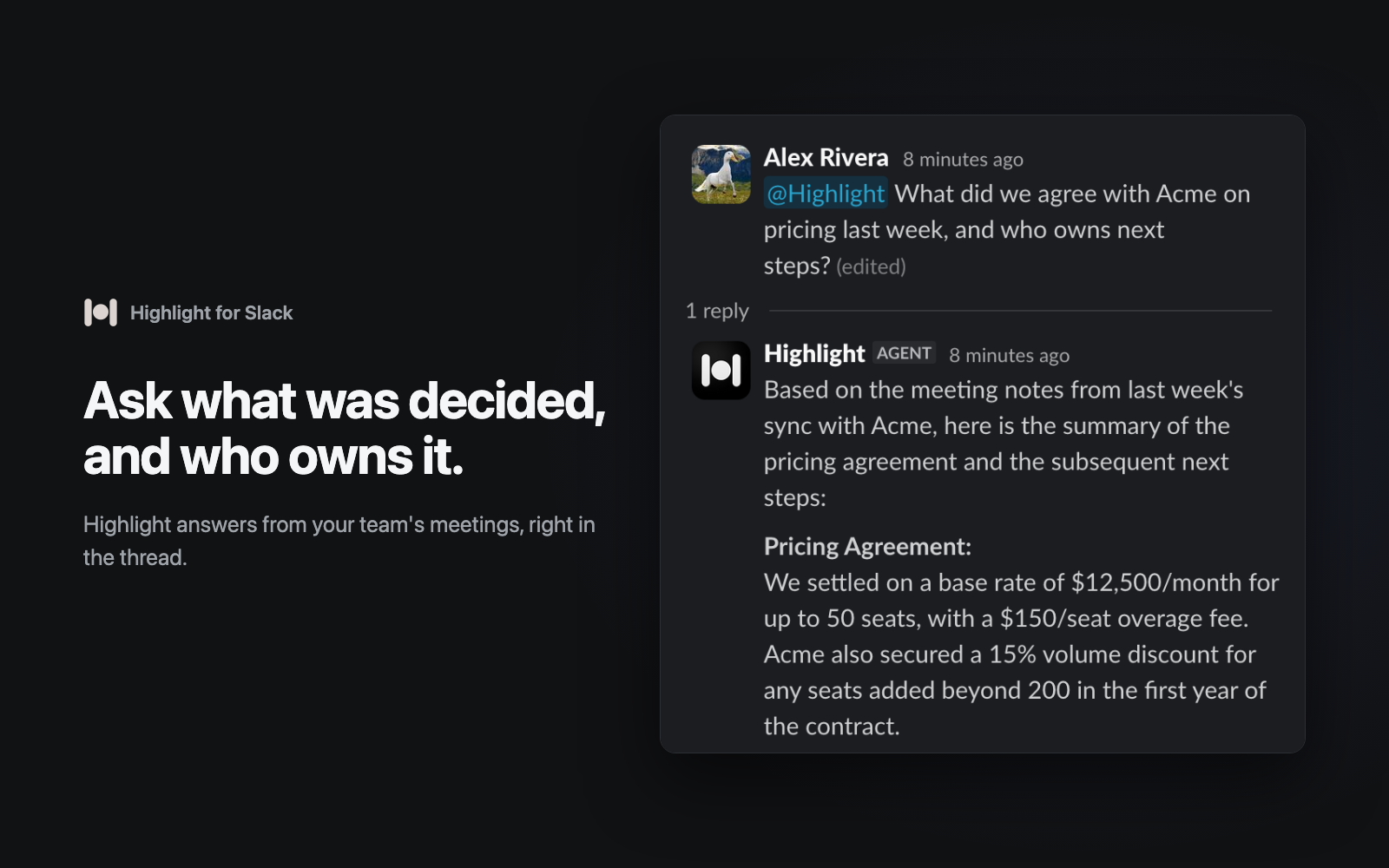
Chat with your AI assistant
Ask Highlight about your meetings, action items, and connected apps directly in Slack. Get instant answers without leaving the conversation.
Draft messages with context
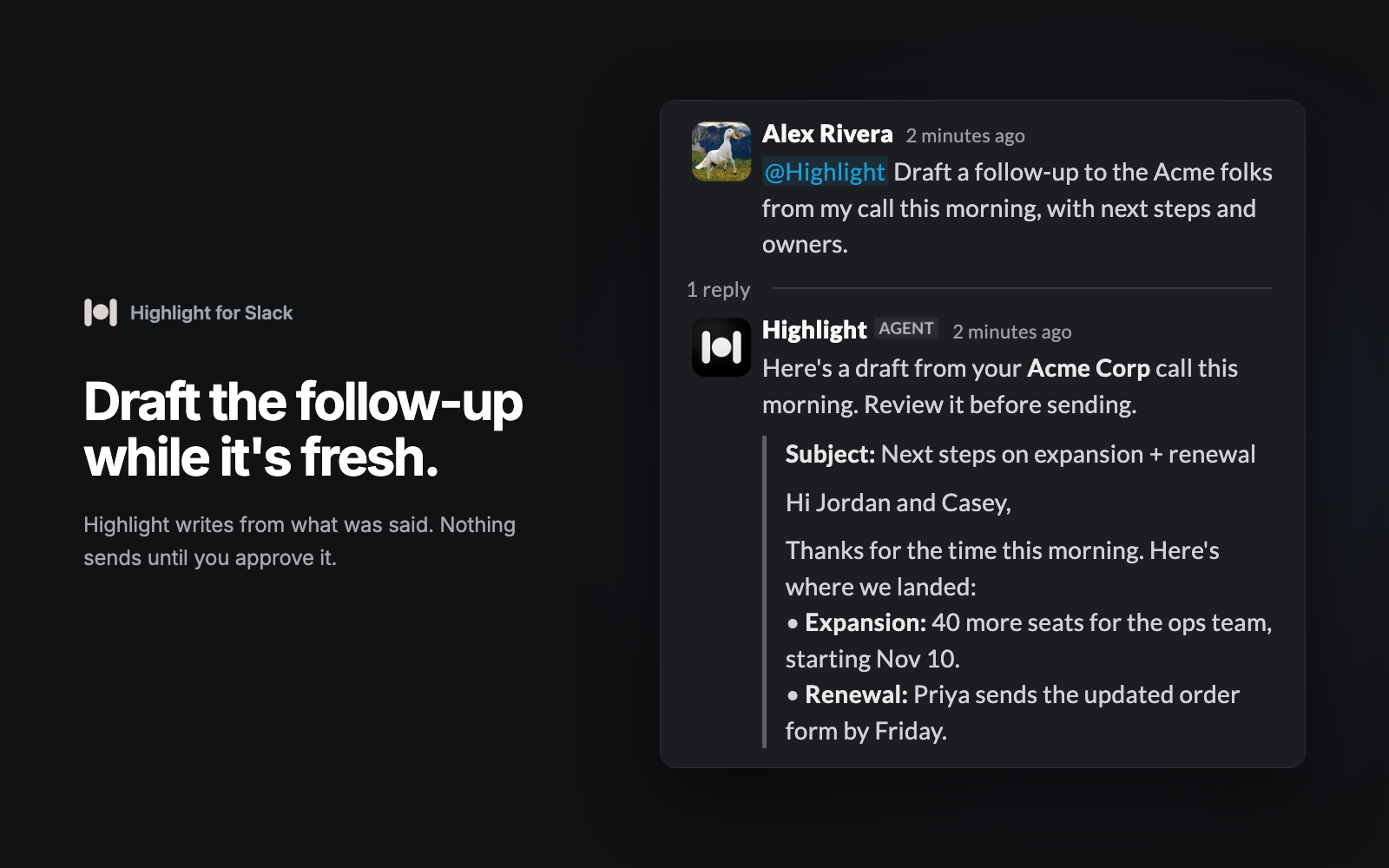
Highlight helps you write follow-ups, summaries, and updates using what it knows from your meetings and workflows.
Highlight returns drafts for your approval. It never sends a message or runs an action on its own.
Stay in the loop
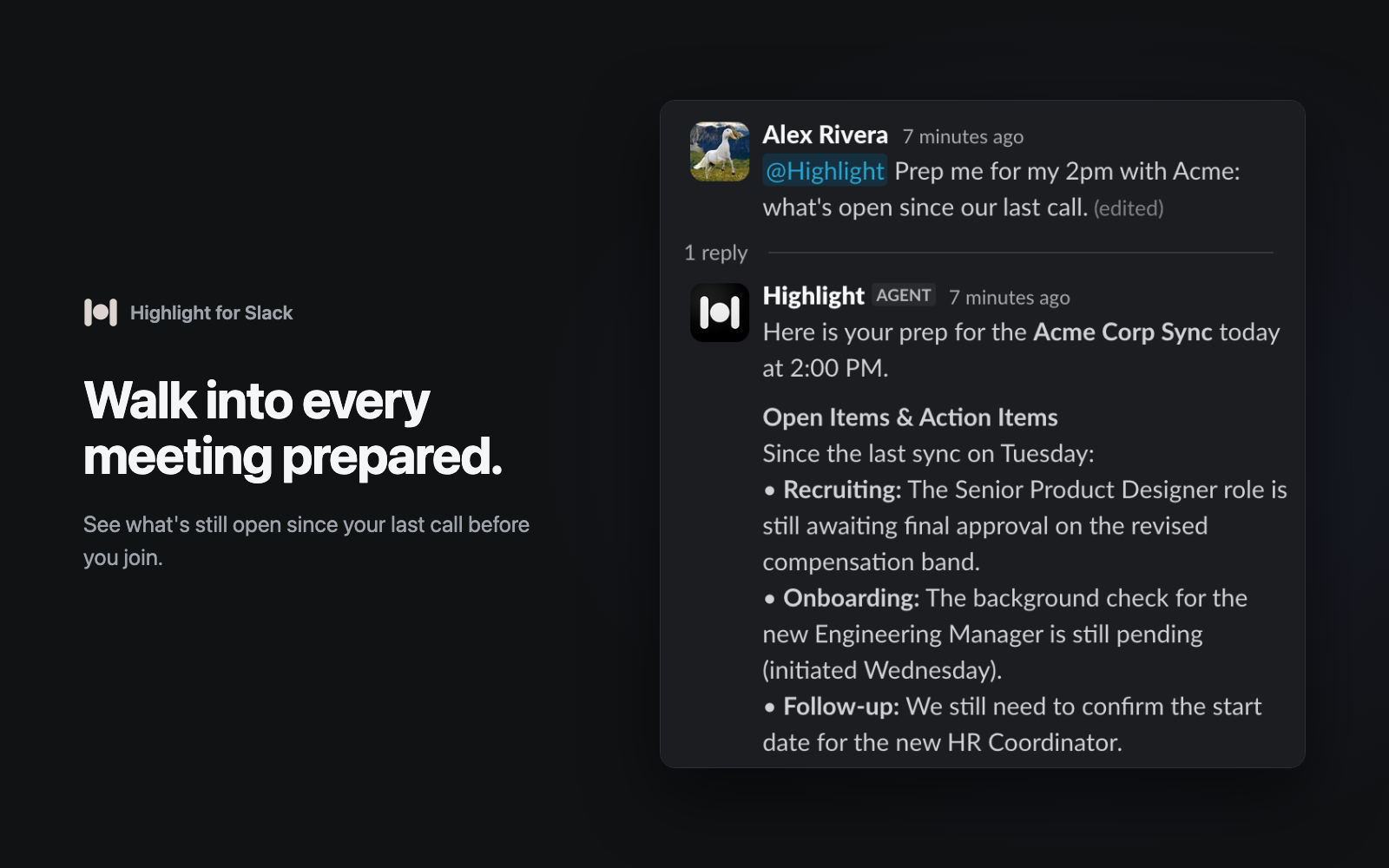
Get actionable notifications about your meetings and tasks in your direct messages with Highlight.
Connect your tools
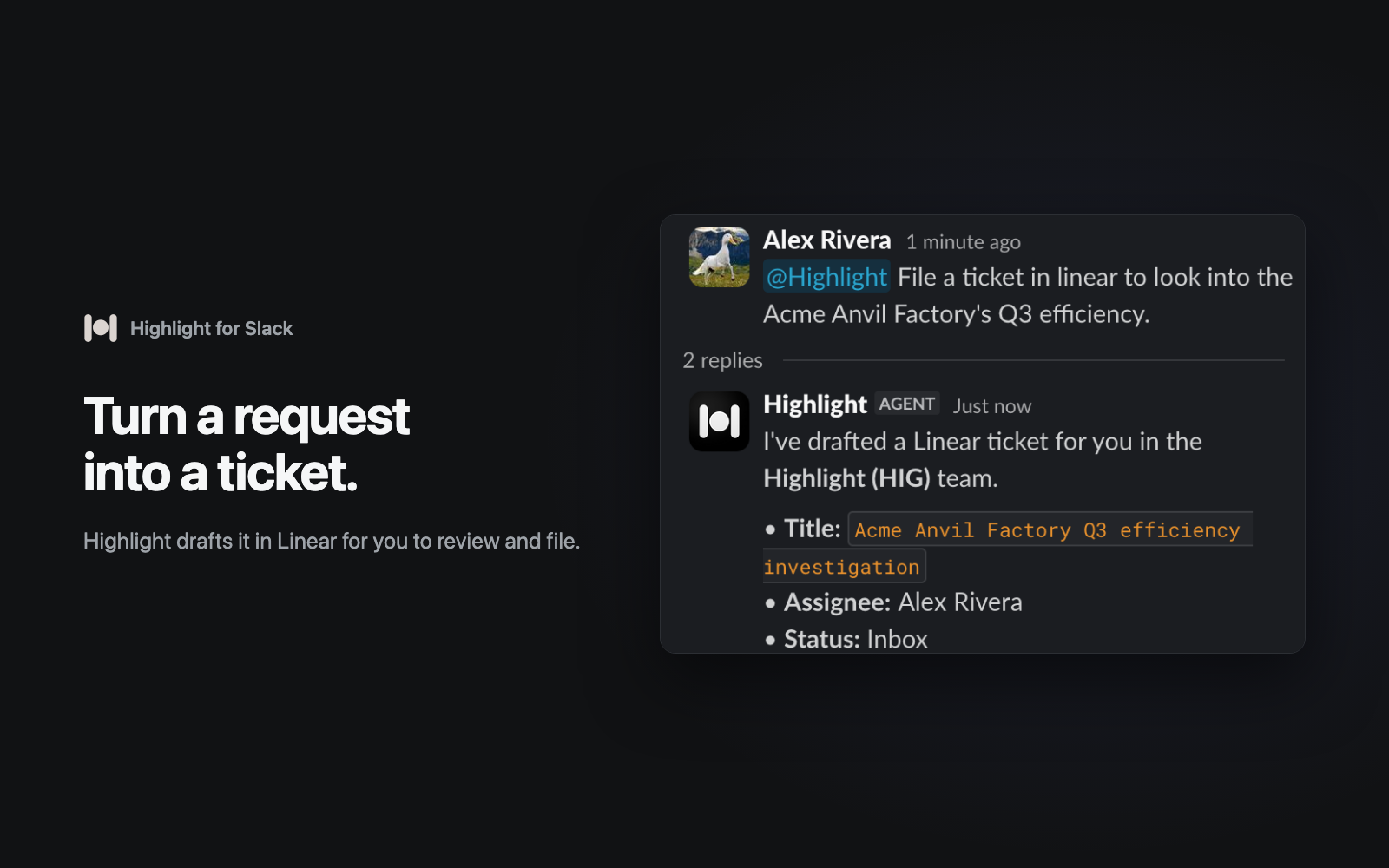
Highlight pulls context from your calendar, meeting notes, and other apps you use every day, and makes it available inside Slack.
Slack plan requirements
Using the Highlight AI assistant inside Slack's app container (the assistant panel) requires a paid Slack plan. This is a Slack platform requirement. All other Highlight features work on free Slack plans too.
Where | What you can do | Slack plan |
Assistant panel | Chat privately with Highlight in Slack's AI app container | Paid plans |
@Highlight in channels and threads | Ask questions in the context of a conversation | Free and paid |
Direct messages | Chat one on one with Highlight in its Messages tab | Free and paid |
Drafted actions | Get message drafts to review before anything is sent | Free and paid |
Reminders and notifications | Get actionable updates about meetings and tasks | Free and paid |
Getting started
Install Highlight to Slack. Click Add to Slack and review the permissions Highlight requests. Depending on your workspace settings, an admin may need to approve the install.
Connect your Highlight account. When prompted, sign in to Highlight to link it with your Slack account. If you don't have an account yet, you can create one during this step.
Start chatting. Open Highlight from your Slack sidebar or the assistant panel, or mention @Highlight in any channel or thread. Send "help" to Highlight at any time for usage tips.
Permissions
Highlight requests only the permissions it needs to work in Slack. Bot permissions let the Highlight app read and reply where it has been added. User permissions let Highlight read what you can already see and, only after you approve a draft, send it as you.
Permission | How Highlight uses it | Type |
app_mentions:read | Respond when someone mentions @Highlight in a channel or thread | Bot · Required |
assistant:write | Run Highlight in Slack's assistant panel on paid plans | Bot · Required |
channels:read, channels:history | Read channels Highlight has been added to, so it can answer in context | Bot · Required |
im:read, im:history, im:write | Read and reply to the messages you send Highlight in its direct message | Bot · Required |
mpim:read, mpim:history, mpim:write | Read and reply in group direct messages Highlight is part of | Bot · Required |
chat:write | Post Highlight's answers, drafts, and notifications as the Highlight app | Bot · Required |
chat:write.customize | Show Highlight's name and icon on the messages it posts | Bot · Required |
commands | Run /highlight commands for help, settings, and choosing your Highlight account | Bot · Required |
reactions:read, reactions:write | Read reactions on messages to Highlight and add a reaction to show it is working | Bot · Required |
files:read | Open files you attach to messages you send Highlight | Bot · Required |
files:write | Attach files to Highlight's replies | Bot · Required |
links:read, links:write | Show previews when someone shares a Highlight link in Slack | Bot · Required |
channels:read, channels:history, groups:read, groups:history | Read public and private channels you are a member of, to answer questions and draft replies | User · Required |
im:read, im:history, mpim:read, mpim:history | Read your direct and group direct messages, to answer questions and draft replies | User · Required |
chat:write, im:write, mpim:write | Send a message as you, only after you approve the draft | User · Required |
users:read, users:read.email | Look up people in your workspace so drafts go to the right person | User · Required |
reactions:read, reactions:write | Read reactions, and add a reaction as you only after you approve it | User · Required |
files:read, files:write | Share a file as you after you approve it, and undo that upload | User · Required |
search:read.public, search:read.private, search:read.im, search:read.mpim, search:read.files, search:read.users | Search messages, files, and people you can already see in Slack, to answer your questions | User · Required |
What Highlight won't do
Send messages or take actions on your behalf. Every draft waits for your review.
Join channels on its own. Highlight only participates where it has been added or mentioned.
Show you channels, messages, or files you can't already see in Slack.
Use your Slack data to train AI models.
Your data
To access, export, or delete your data, see our Privacy Policy or contact support. Our Trust Center covers security, including SOC 2 Type 2.
About AI-generated content
Highlight uses AI models to generate responses, summaries, and message drafts. As with all AI-generated content, outputs may be inaccurate, incomplete, or out of date. Always review Highlight's output before sending or relying on it.
Troubleshooting
Why can't I see the assistant panel?
Slack's AI app container requires a paid Slack plan. On a free plan, you can still mention @Highlight, message Highlight directly, and get drafts and reminders.
@Highlight isn't responding in a channel
Highlight needs to be a member of the channel. If Slack offers to add Highlight when you mention it, accept. You can also add it from the channel's integrations settings. Then mention @Highlight again.
How do I remove Highlight from Slack?
Open Highlight's app settings in Slack and remove the app, or ask a workspace admin to remove it from your workspace's app management page.
For I (stop Highlight reading your Slack)
Open Highlight → Settings → Integrations.
Find Slack and click Disconnect.
For the whole workspace (Slack admins only)
In Slack, click the workspace name → Tools & settings → Manage apps.
Select Highlight Agent.
Click Configuration.
Scroll down and click Remove App, then confirm.
Support
Contact us directly in the app, or Email us at support@highlightai.com. You don't need an account to get help, and we respond to every request within 2 business days. You can also browse guides at help.highlightai.com.