Attach Context to a Chat
Last updated: September 16, 2026
Highlight's Chat is extremely powerful. If it's on your screen, Highlight can see it and use the context as it responds to you.
How to Attach Context to a Chat
From within a chat, Highlight will automatically recognize your active screen context, open windows and apps. So long as you've approved the screen context in your data & privacy settings, Highlight can use the context to respond to your chat.
Here's an example of Highlight Chat automatically recognizing an active website, and allowing the user to add the content as context for a chat.
Additionally, you can use the ➕ sign to attach loads of other context to the chat. Here's what that looks like
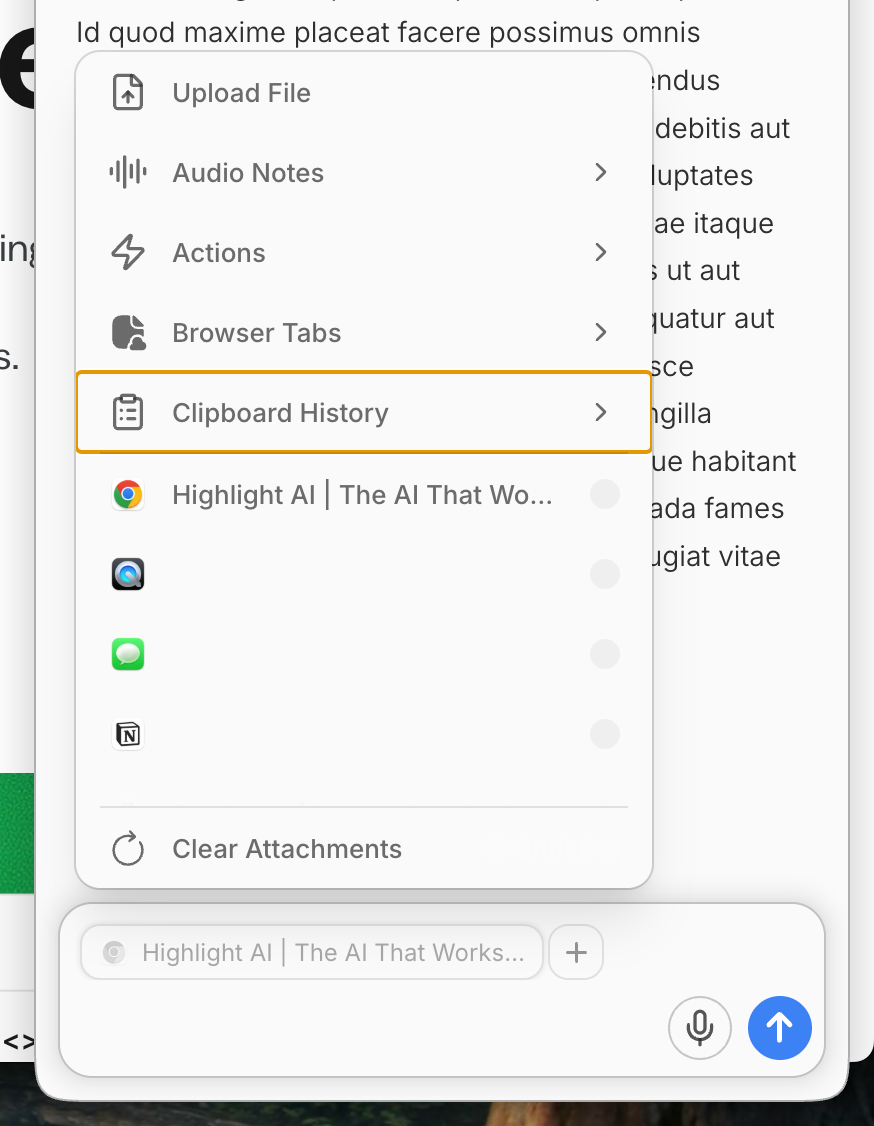
What can you attach to a chat
The context you add can come from many sources.
Uploaded Files
Audio Notes
Actions
Browser Tabs
Clipboard History
Active screen context
This is very similar to a deprecated feature called Magic Dot.
Pop out a chat
Using the "open in new window" feature allows you to dedicate a window to an individual chat. This is helpful so you can leave a persistent chat open in a window, or have multiple chat sessions running.
As of right now, if you open a chat in a new window, the context does not live-sync between the popped out window and the chat in the app.