Debugging - Share Debug Logs
Last updated: September 10, 2026
Follow this guide to help us help you. We can provide better assistance if you share your Debug Logs when submitting a report.
Sharing Debug Logs
If you ever encounter an issue or bug within the Highlight App, we ask that you share your Debug Logs with our engineering team so they can investigate the issue. The Debug Logs will download locally to your computer, which you can then upload to share with us in a chat or email with support.
How to share debug logs
In the app, select the
⋮menuSelect Help —> Share Debug Logs
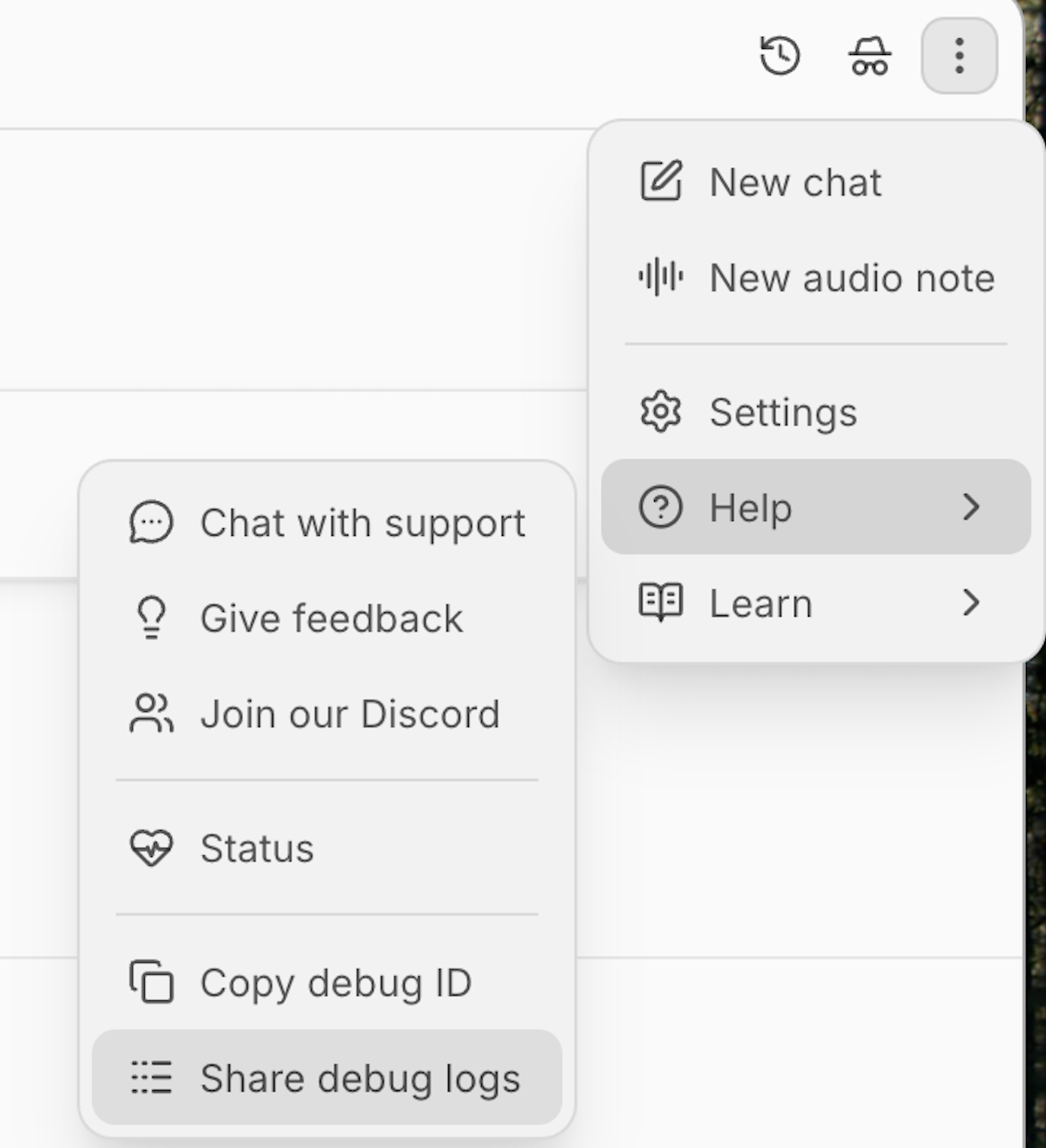
The Debug Logs automatically download to a small zip file on your computer.
Unzip the file
Share the file with the extension
.log
If the file was downloaded on January 1, 2027, the file name would be: main-2027-01-01.log The log file enables our engineering team to inspect the actions that you’ve taken, and provides them with the necessary information to debug your issue.
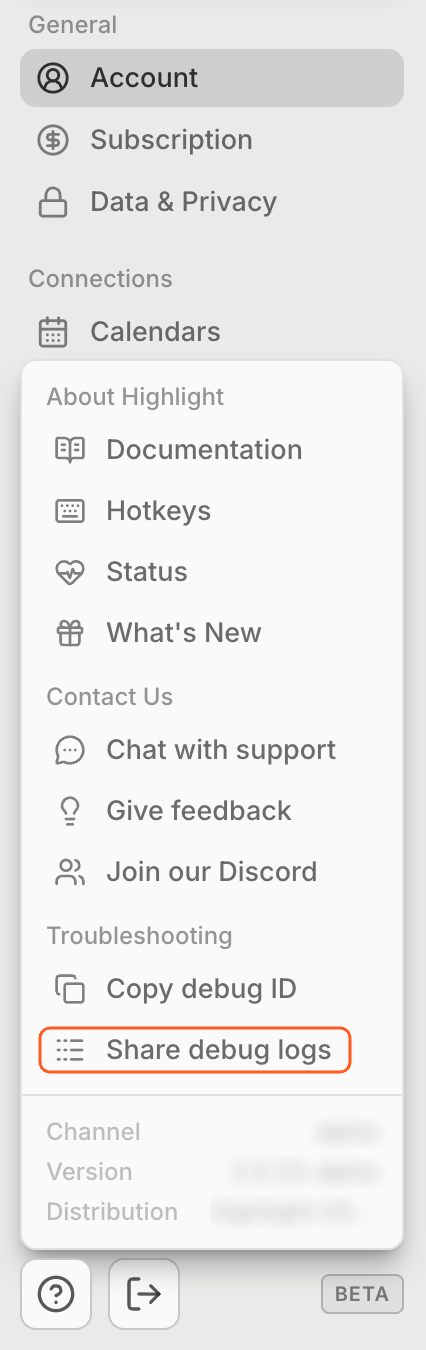
You can also Share Debug Logs from the App Settings. Find the ❓icon, and select Share Debug Logs.
What is a Braintrust Link
In the original version of Highlight, the Debug Logs were called Braintrust links, and corresponded to the 🧠 icon in the menus. If you don't see "Share debug logs", take a look for "Braintrust". Selecting it provides the same information to our engineering team as the debug logs.
Sharing your Debug ID
If you're chatting with Support, your Debug information is attached automatically to the request. However, if you're emailing a request to Support, it's a good idea to also share your Debug Info.
How to share debug ID
In the app, select the
⋮menuSelect Help —> Share Debug ID
Example Debug ID:
{

  "debugId": "user_1234",

  "deviceId": "xfxf447x-6464-4x9f-8461-xx258xxx556x",

  "channel": "xxxx",

  "version": "x.x.x-xxxx"

}
Sharing Crash Dumps
If you are experiencing crashes, we may need the crash dumps to resolve it.
Windows
Go to C:/Users/YOUR_USER/AppData/Roaming/Highlight/Crashpad/
Then, if there are any files in the attachments, completed, new, and pending folders — compress them to a .zip and send them to us.
Mac
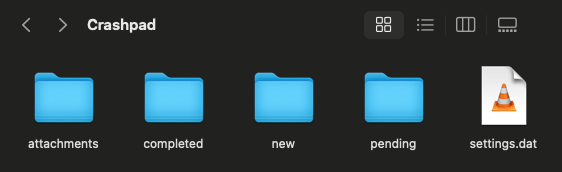
Go to ~/Library/Application Support/Highlight/Crashpad You can open Terminal and use the command: open ~/Library/Application\\ Support/Highlight/Crashpad
Then, if there are any files in the attachments, completed, new, and pending folders — compress them to a .zip and send them to us.
Switching to Beta Release Channel
Beta Releases may be unstable or have unexpected issues. It is recommended to stay on the Latest release channel.
In some cases, we may release attempted fixes for issues you’re having to the Beta Release Channel.
To switch to Beta and try it out:
Go to Highlight Settings → App
In the Release Channel dropdown, select Beta
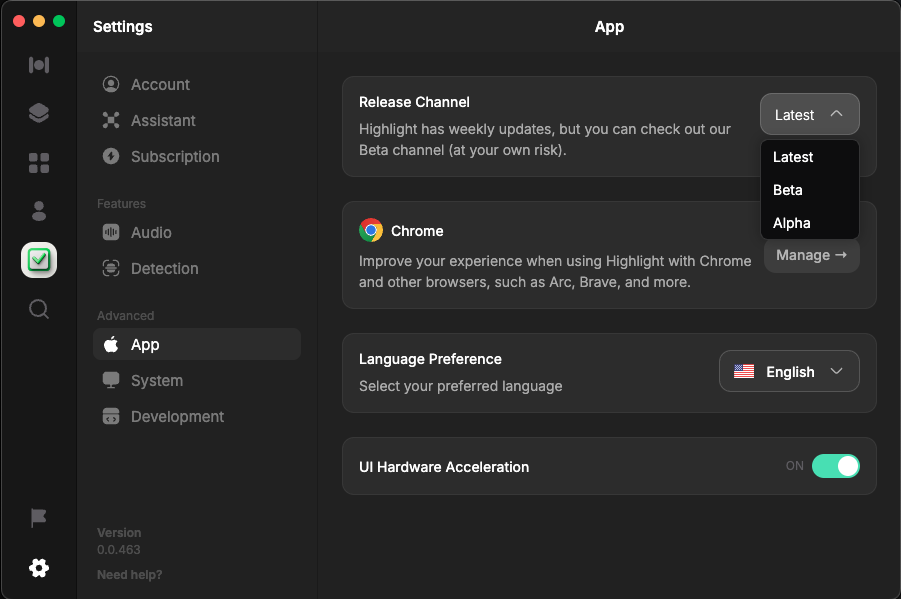
Click Restart Highlight
If you get an update banner at the top after restarting, click Install Update
Confirm you are on beta in the bottom left of settings