Black/Gray/White Screen (Windows)
Last updated: September 4, 2026
If you see a black or gray screen when you start Highlight, unfortunately this is some type of GPU / driver / OS issue. However, in 99% of cases it is resolved by the following:
Option 1: Turn off UI Hardware Acceleration
Right-click Highlight in system tray
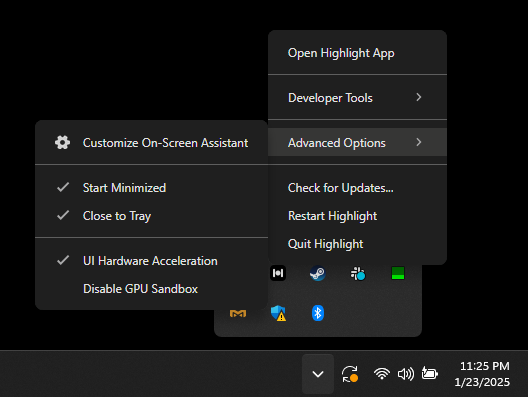
In Advanced Options, toggle UI Hardware Acceleration so that it is not checked
Restart Highlight
Option 2: Configure Nvidia control panel
Open the NVIDIA Control Panel and navigate to Manage 3D Settings
Select Program Settings and locate Highlight in the program list
Then do the following:
Turn ON Triple Buffering
Turn OFF Vertical Sync
Turn OFF Anti-Aliasing
Turn OFF Background Application Max Frame Rate
Restart Highlight
Option 3: Disable fullscreen optimization
Follow the steps for Option 2 above
Right-click Highlight.exe
Click Properties
Click Compatibility
Toggle Disable Fullscreen Optimization
Restart Highlight
If issue persists, additionally try toggling Run as Admin, then restart Highlight
Option 4: Disable GPU Sandbox
If the above still doesn’t fix it, you can try disabling GPU sandbox.
This can technically negatively impact security, but it should not be an issue for Highlight. GPU sandboxing is a security feature built in to Chromium.
Right-click Highlight in system tray
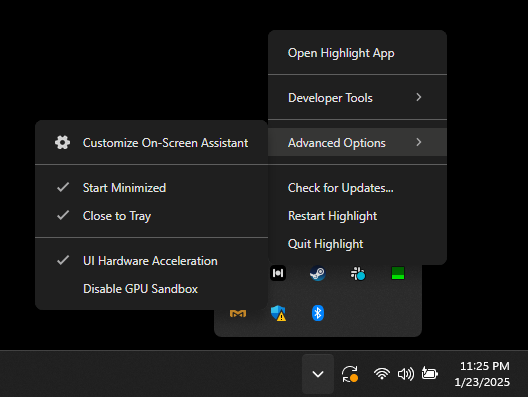
In Advanced Options, toggle Disable GPU Sandboxing so that it is checked
Restart Highlight
If issues still persist after trying the options above, please contact our support team via chat within the app: In Settings --> ? Logo --> Chat with Support