The Highlight desktop app
Last updated: November 19, 2026
The Highlight desktop app is one window where you can see where your day stands and get the work done. Start on Home to see what's relevant, what you missed and what's next. From there, work through your to-dos, chat with Highlight on a full page, look back at past meetings and run your agents.
The side panel is still here. It keeps Highlight next to whatever app you're working in, and the desktop app gives you more room when you need it. Any tab can move between the two in one click.
The desktop app is available on Mac and Windows and is included on every plan.
Open the desktop app
Open Highlight from your dock (Mac), menu bar (Mac) or taskbar (Windows), and you'll land on Home.
If you're already in the side panel, click the arrow in the top-right corner (Move into desktop app). Whatever you had open moves into the desktop app with you.
What's in the desktop app
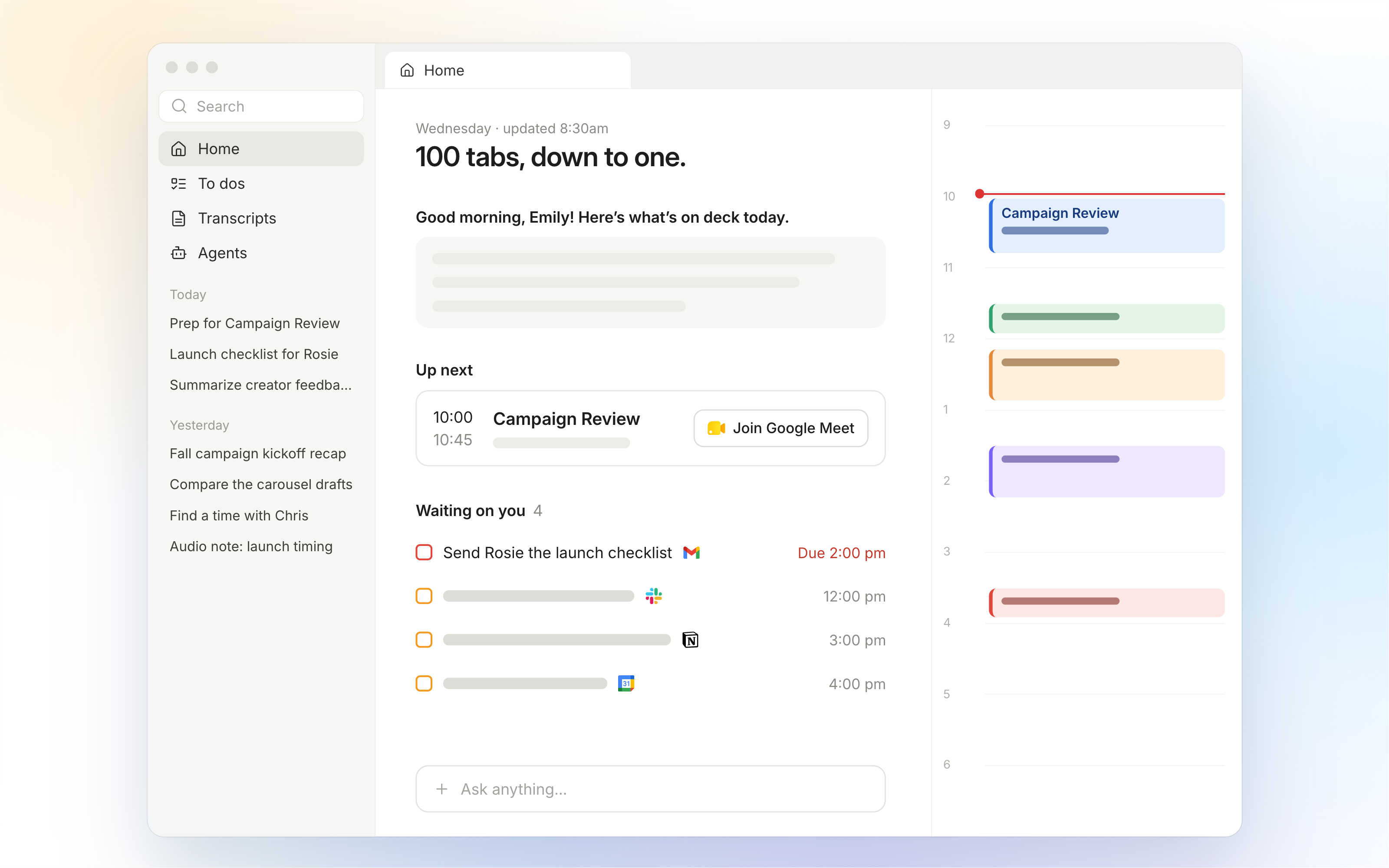
Home. Your brief and time-sensitive to-dos on one page, with today's calendar in a column on the right. The calendar stays open by default so you always know what's coming up.
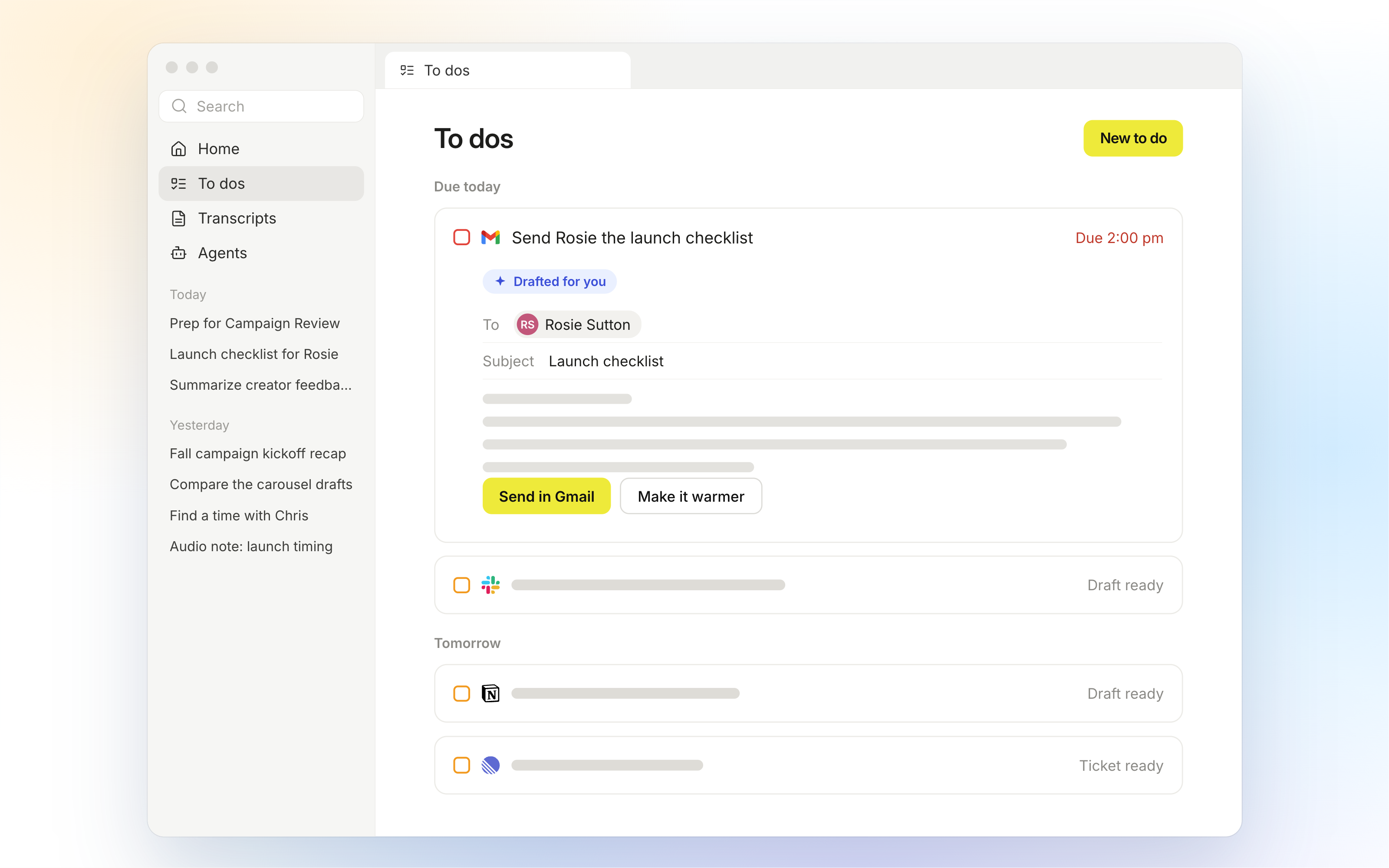
To-dos. Drafts and reminders in one list, grouped by when they're due. Open a to-do to review it, edit it or check it off.
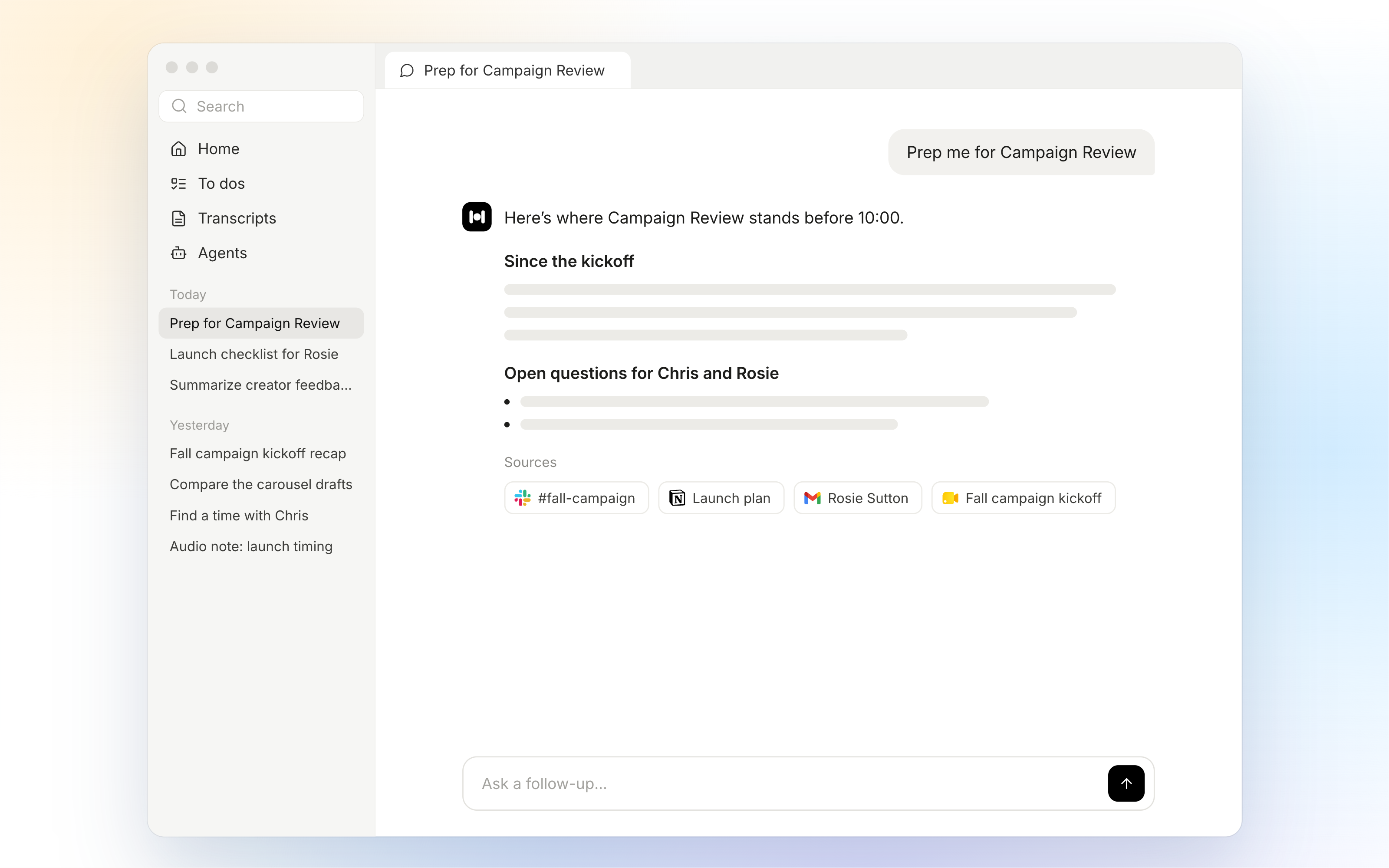
Chats. Start a new chat or pick up a recent one. Chats open on a full page, so long answers have room, and any artifacts Highlight creates can be opened and edited right there.
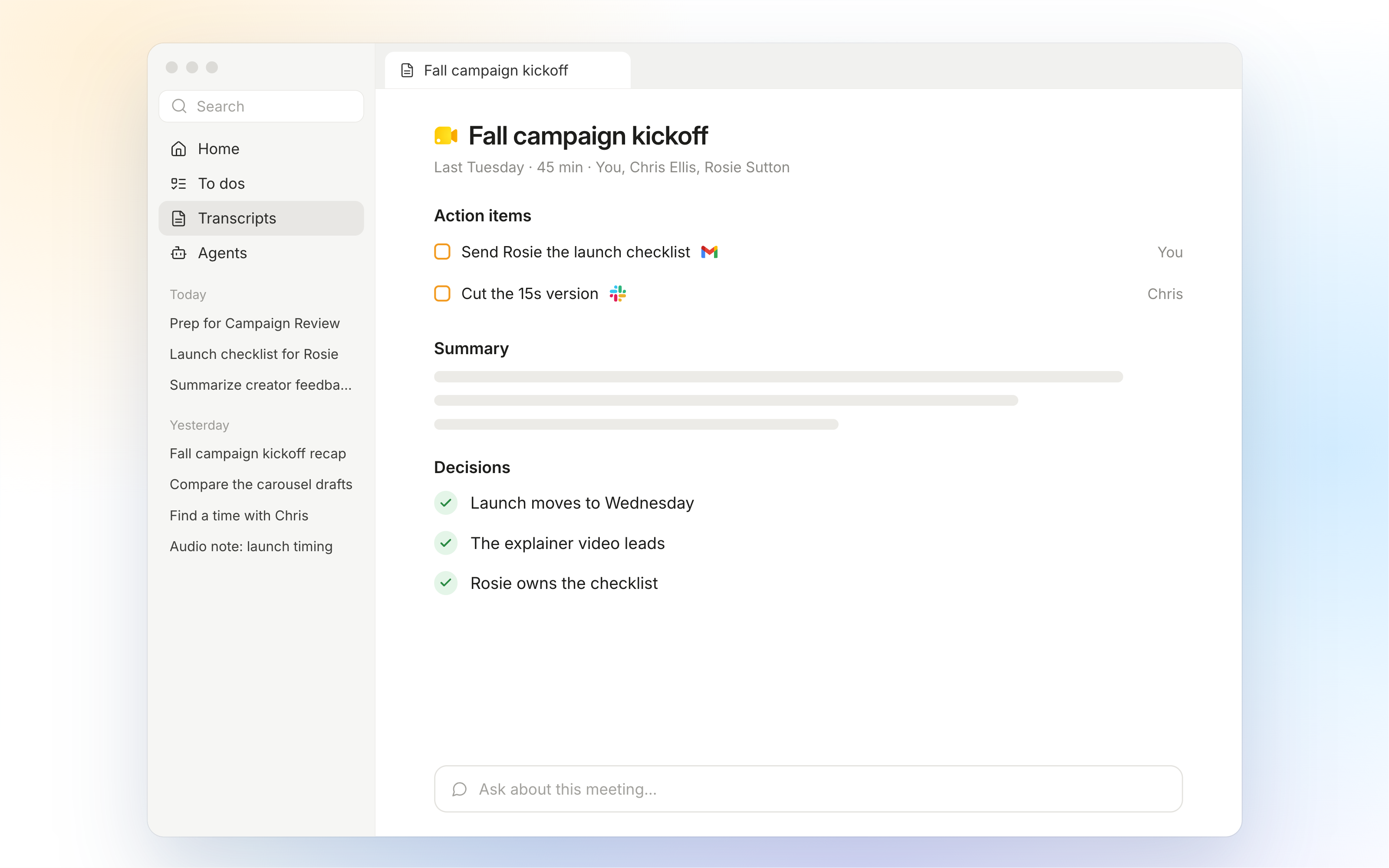
Transcriptions. Transcripts and summaries from your past meetings.
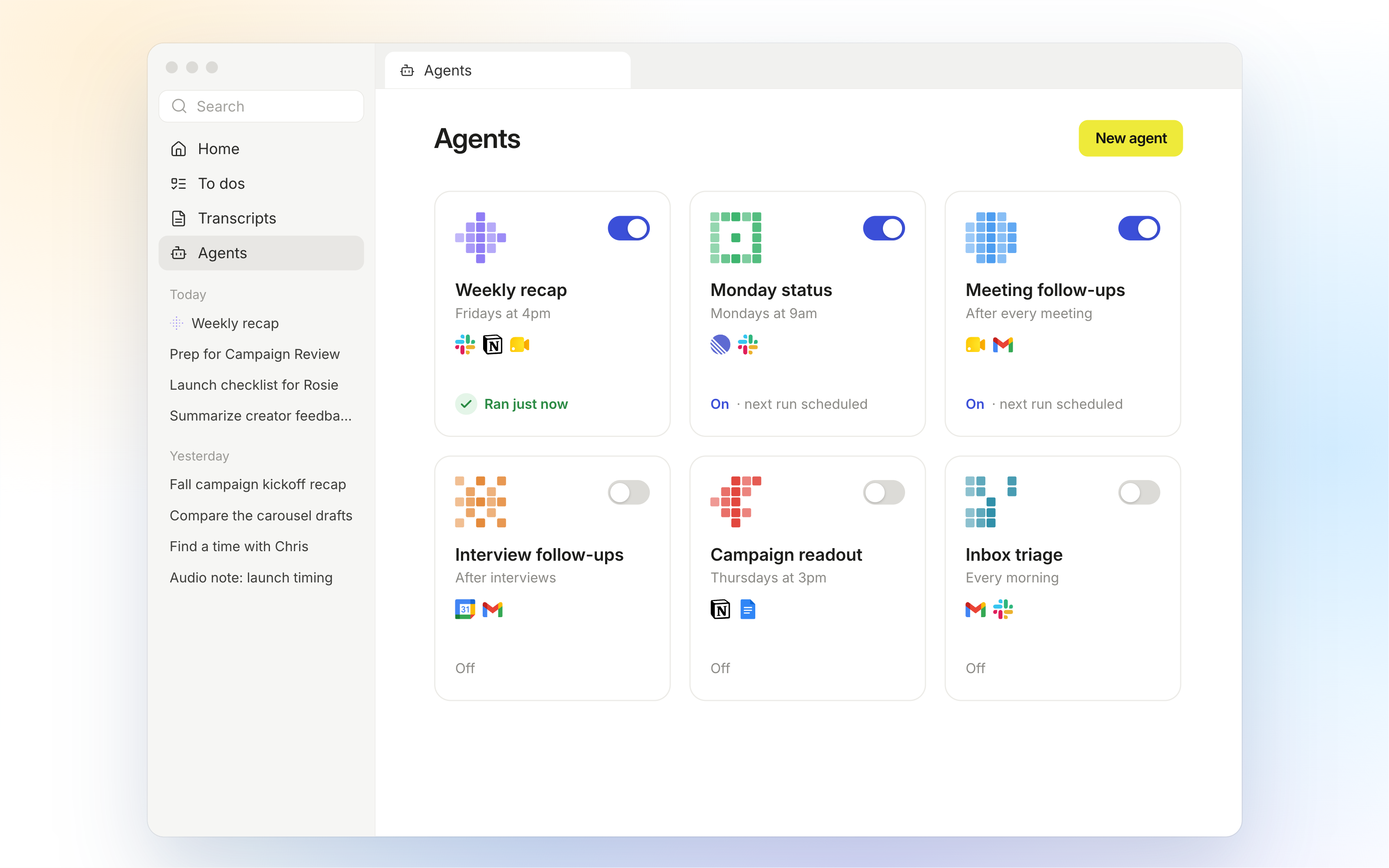
Agents. Create an agent or run one you've already set up. All your agents live here.
Work in tabs
Everything you open in the desktop app (a chat, a to-do, a transcription) opens in its own tab, so you can keep several things going at once.
- Pin a tab to keep it open while you close the others.
- Close other tabs to clear out everything except the one you're in.
- Move a tab to the side panel when you want Highlight next to another app. Move it back into the desktop app when you need the full window again.
The desktop app and the side panel
They're the same Highlight, sized for different moments of your work day. The side panel now opens to your upcoming meetings and today's to-dos, so the important things stand out. Click a meeting to see its brief without leaving the list.
Use the side panel to keep Highlight beside the app you're in: your upcoming meetings, today's to-dos, a meeting's brief before a call and live notes during it.
Use the desktop app when the work needs room: reading a long answer, editing a draft, working through your to-do list or keeping several chats open in tabs.
Anything you're working on can move between them in one click.
Keyboard shortcuts
Keyboard Shortcut | What it Does |
⌘N | Start a new chat |
⌘H | Go to Home |
⌘W | Close the current tab. With no tabs open, it closes the window. |
⌘⇧[ or ⌘⇧] | Move to the previous or next tab |
⌘1 through ⌘9 | Jump to tabs 1-8, 9 goes to the last tab |
⌘⇧F | Search |
There's no need to memorize these. For navigation that has a short cut, hover over a button and its tooltip shows the shortcut keys. On Windows, use Ctrl in place of ⌘.
Frequently asked questions
I Closed the window, how do I bring it back?
Closing the desktop app window doesn't quit Highlight. To open it again, either:
Click the Highlight icon in your menu bar (Mac) or system tray (Windows), or
Click the arrow in the top-right corner of the side panel (Move into desktop app).
Where are my upcoming meetings?
Today's meetings show in the calendar column on Home. Transcripts holds your past meetings. To start a meeting use the + icon and select New Meeting Note, or use the side panel to see live notes during a call. From your calendar view, you can generate a generate a meeting brief, join the meeting, or open the event to begin a chat.
Do I have to use the desktop app?
No. The side panel works the way it always has, and you can move between the two whenever you like.
I closed the window. Did I quit Highlight?
No. Highlight keeps running. Click the Highlight icon in your menu bar or system tray, or the Move into desktop app arrow in the side panel, to bring the window back.
I have feedback on the desktop app.
We'd like to hear it. Send it through this form or chat with support in the app under Settings --> ❓ icon.