Updating Highlight
Last updated: January 28, 2026
Follow this guide to update your application.
Mac
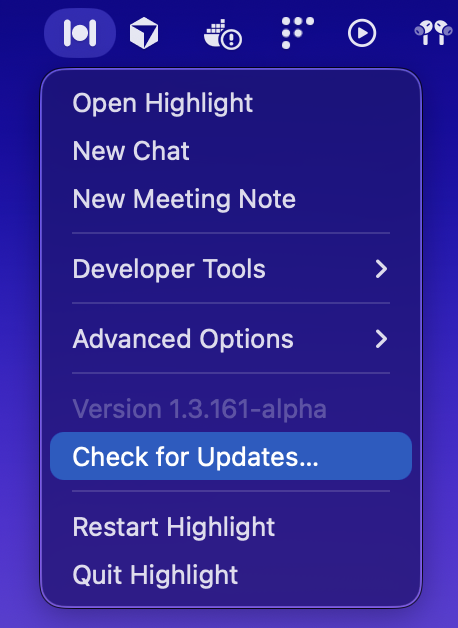
Right click on the Highlight icon in the menu bar and click “Check for Updates…”
A toast will appear indicating whether an update is available or not. If it is, click the “Start Download” Button

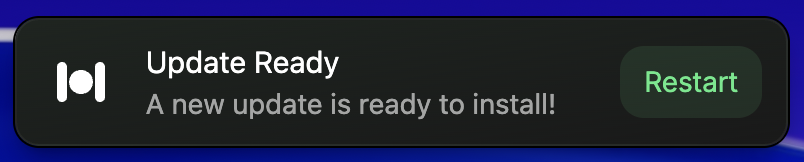
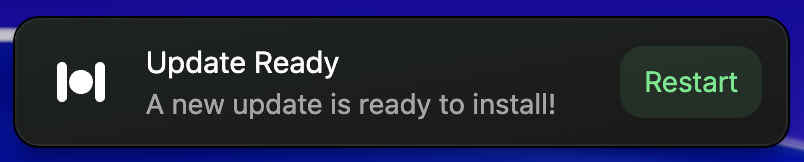
Once the download completes, click “Restart” to start using the new version.
Windows
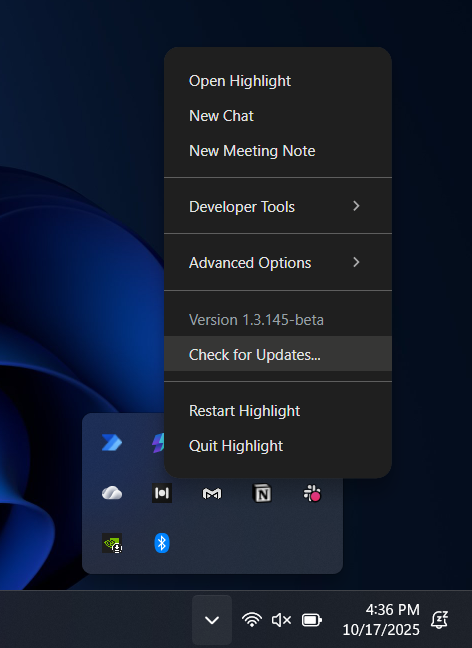
Right click on the Highlight icon in the tray menu and click “Check for Updates…”
A toast will appear indicating whether an update is available or not. If it is, click the “Start Download” Button

Once the download completes, click “Restart” to start using the new version.